How to Use the Moe’s Home Digital Asset Library
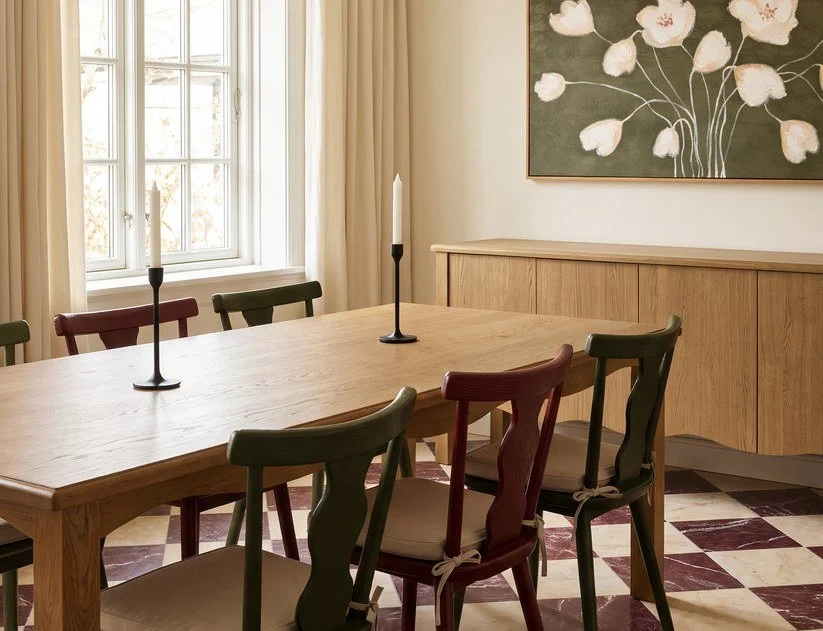
Lifestyle photography from Moe’s Home.
Great furniture deserves great content. Whether you’re planning your next Instagram post, refreshing your website or putting together a client presentation, the right image helps your customers see the possibilities.
Moe’s Home’s Digital Asset Library on Bynder brings product photography, lifestyle imagery, product videos and other marketing content together in one place. For our retail and design partners, it’s a useful resource to keep close at hand—and easier to navigate once you know where to look.
What you can find in the library
A clean product image helps customers focus on a piece’s shape and details. A styled room photograph gives it context: how it sits alongside other furnishings, how materials work together and what a finished space might feel like.
The library gives you access to both white-background product photography and lifestyle imagery, along with product videos and other marketing content. Think of it as a starting point for your next product feature, collection story or client presentation.
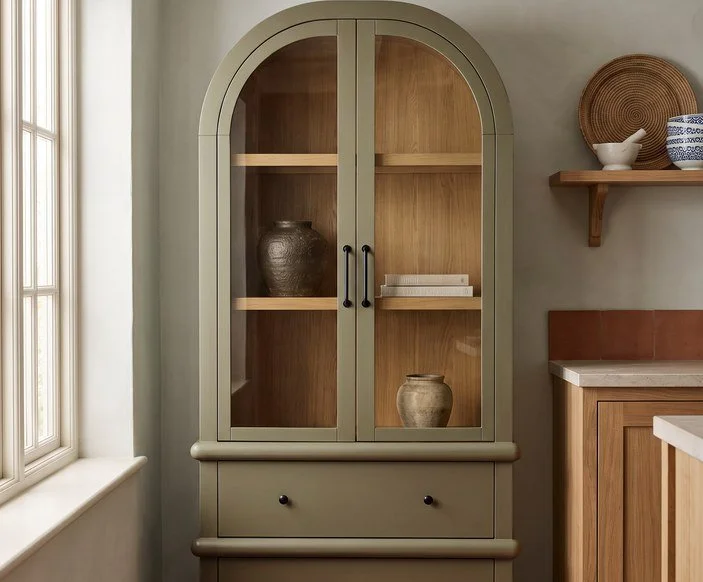
Styled imagery helps customers picture a piece in a finished space. Photography from Moe’s Home.
How to access the digital asset library
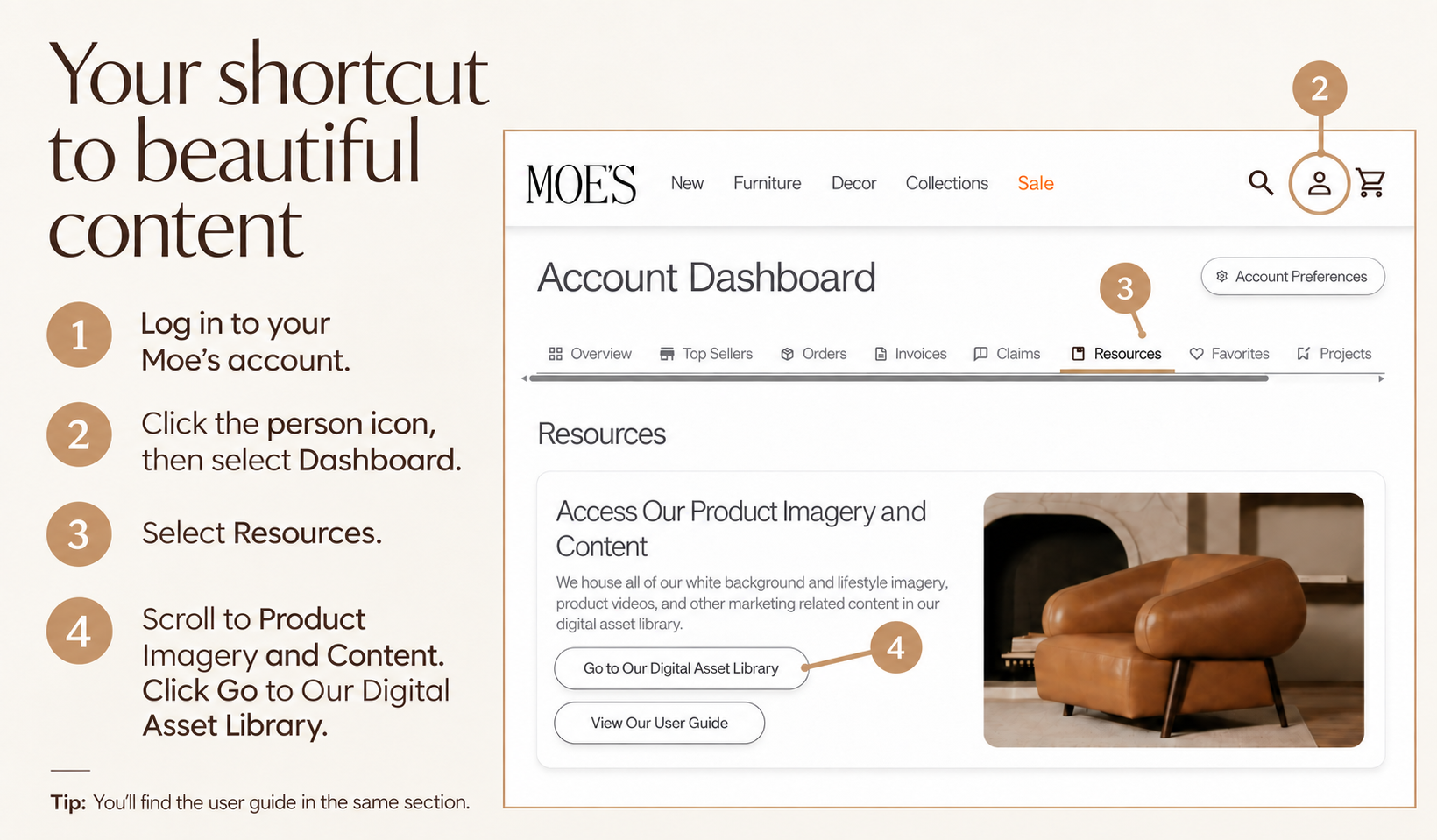
You’ll find the link through your Moe’s Home account:
Log in at moeshome.com.
Click the person icon in the upper-right corner and select Dashboard.
Select the Resources tab.
Scroll down to Product Imagery and Content.
Click Go to Our Digital Asset Library.
Find the imagery you need
Once you’re in the library, you can search by product name, collection or SKU. Already know the product you want to feature? Start with its SKU. Building a story around a collection? Search the collection name instead.
Filters help narrow the selection further. You can filter by category or subcategory, product angle, and collection, or use advanced filters for asset type, orientation and resolution.
Planning content around several products? In the Product filter, enter a SKU and select it from the list. Add another SKU the same way to bring imagery for both products into your results.
Download one image or a whole selection
For an individual asset, open it and choose from the available download resolutions.
For several assets, hover over each image and click the check mark to select it. When your selection is ready, click Download, choose the resolution you need and select Start Download.
This is especially useful when you’re preparing a group of website updates or gathering images for a content session: make your selection first, then download it together.
Put the imagery to work
A few ways to make the library part of your routine:
Refresh product pages with clear photography that helps customers assess the piece.
Build social posts around a favourite product, material or collection.
Create client presentations that pair product details with the atmosphere of a styled room.
Gather content in batches so you have imagery ready when it’s time to create.
Let the photograph start the conversation, then add your expertise. Explain what draws you to the piece, how you would style it or why it suits the customer’s space.
Keep the user guide handy
The View Our User Guide button sits directly below the library button in the same Resources section. It opens the step-by-step guide to searching, filtering and downloading, complete with screenshots.
If you need help finding your way, reach out to us at JayKay Sales. For technical questions about the library, contact productdatamanagement@moeshome.com.
Find your Moe’s imagery
Your next post, presentation or website refresh can start with a quick visit to the library.
Log in, then go to Dashboard → Resources → Product Imagery and Content.
JayKay Sales — Your connection to Moe’s Home.